Independent Field Note
Can you still edit the file?
Illustrator’s AI Assistant can take a plain-language request and work on the open vector document. Adobe put the beta in its November desktop release. I’d judge it by what the next designer can still change.
Try the proofing desk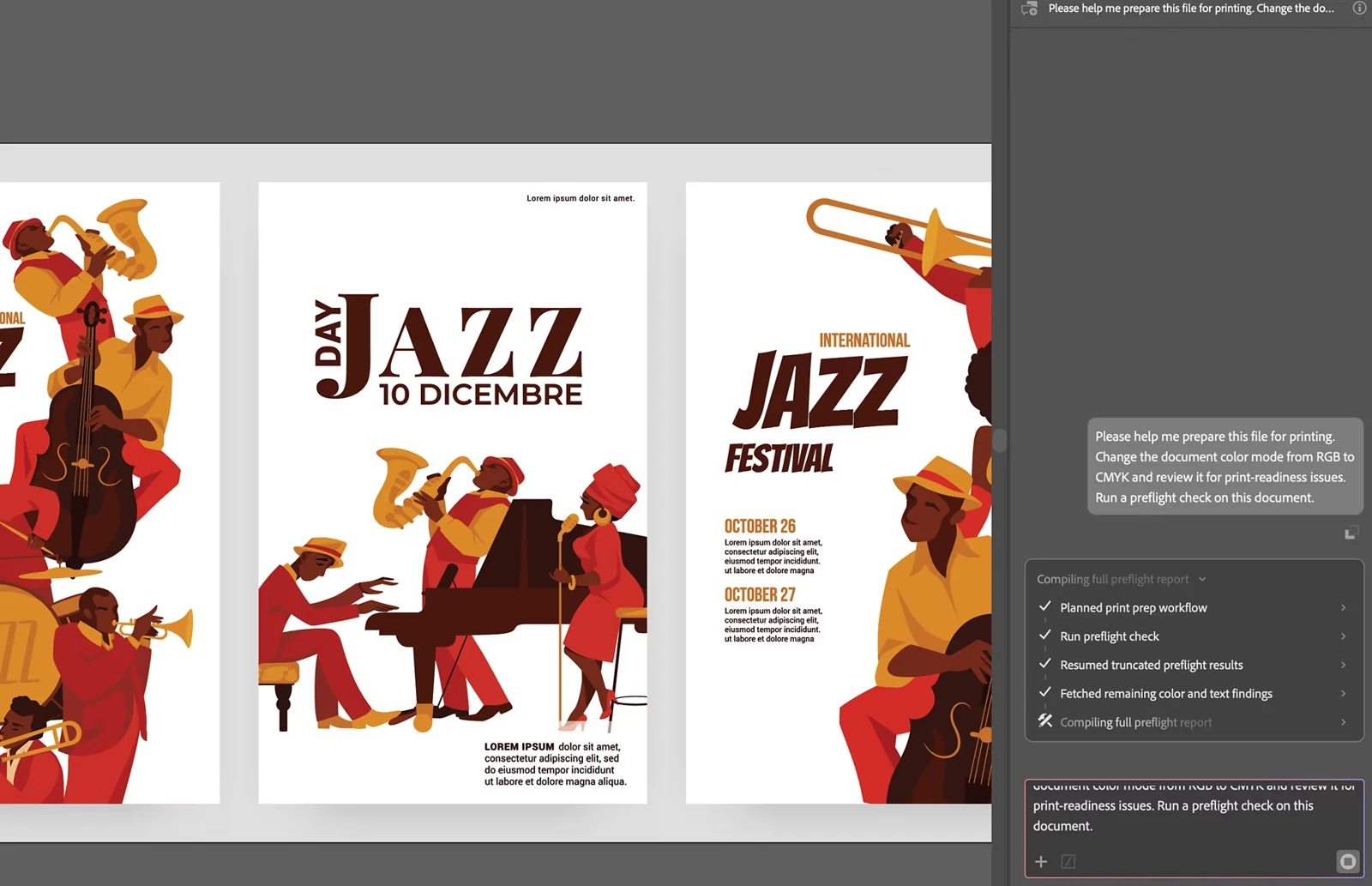
The November release
The handoff starts inside the file.
Suppose a venue changes the doors time on a poster you already approved. You need an updated print file and a social version. The next designer needs the type to stay live, the logo to stay where it is and the original to remain available when someone asks what changed.
Adobe’s Illustrator 31.0 release notes list the AI Assistant beta as a desktop feature for multi-step production work. It can take requests for tasks such as layer organization, export and print preparation from a panel in Illustrator. For involved tasks, Adobe says you can inspect the assistant’s steps and refine instructions. That gives you a chance to catch a plan that targets the whole document when you meant one artboard.
Adobe also documents creating artboard variations from rows in a CSV or spreadsheet and says the updated text remains editable for that workflow. That promise is specific. A separate task might touch a group, a style or a linked asset you still need. Check the objects in the working file as well as the image you export.
This analysis draws on Adobe’s release notes, workflow documentation and product screenshots. The examples are proposed pilots. I did not run the beta for this Field Note.
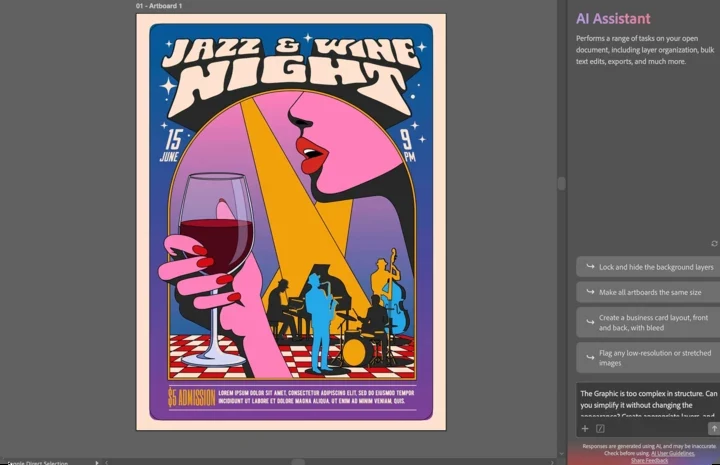
Production proof · fictional poster
Read the change order.
Choose an edit. The proof shows what should change, which parts of the file should be protected and what to inspect afterward.
Original editorial illustration. The controls change this proof only and make no requests to Illustrator.
Skills and preflight
Prove it twice before saving it.
Adobe describes Skills as saved, reusable workflows you can invoke from the assistant. The second file tells you whether the first success depended on an accident of naming or structure.
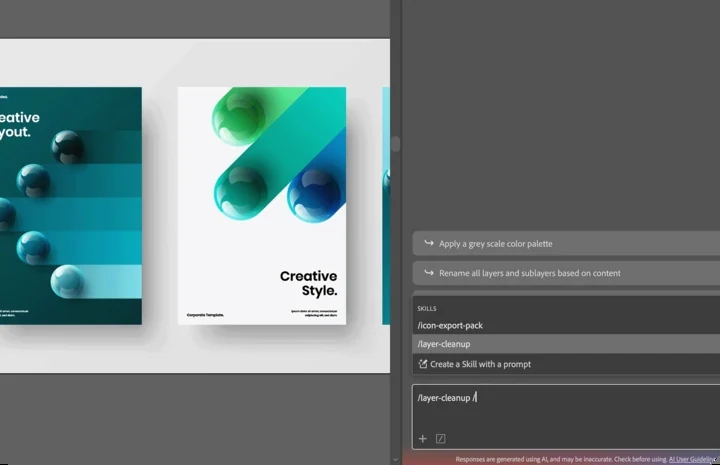
Run the edit on a duplicate of the original campaign file. Save the plan, note which objects it touched and count correction time along with the time spent prompting. Compare against your usual action or export preset. If the task is already a stable sequence, that baseline may be easier to predict.
Then try the same instruction in a second file with a different layer order or a longer venue name. A good workflow identifies its targets by purpose and flags an ambiguous match. If you have to rename half the document to make the saved instruction work, include that setup in your decision.
For print, Adobe documents a preflight report that separates critical issues, warnings and passed checks, with some fixes requiring a person. Read the report before applying fixes. Then compare the export with your printer’s job specification. The assistant’s document review and the printer’s acceptance are separate steps.
Use it where a reviewer can see the difference.
Illustrator teams that spend part of every week making variants and checking deliveries have a sensible pilot. Start with two sample files and a clear delivery spec. Keep the workflow if it leaves editable sources and clean exports with less total review time. Beta access and credit use can vary by action and plan, so check your account before relying on it in a production schedule.
The earlier Firefly to Premiere Field Note examined what survives the move between video editors. Here the file stays in Illustrator, and the real test is what another designer can select, revise and export after the assistant finishes.
Primary sources
Adobe’s release and evidence
- Adobe MAX Creative Cloud announcement · November 10, 2026
- Illustrator 31.0 release notes · November 10, 2026 update
- Assistant workflows, Skills and preflight · November 12, 2026 update
- Adobe’s product announcement and screenshots · November 10, 2026
- Adobe Illustrator AI Assistant FAQ, including credits · November 9, 2026 update, Japanese